Managing connections
A connection profile is how Keydra reaches one target. Add one, test it, edit it without re-entering its password, and switch between its databases.
What a connection profile is#
A connection profile is Keydra’s description of one target: where it is, how to authenticate to it, and how to reach it. It is not a live connection — Keydra opens one lazily, keeps it while it is useful, and closes it when the profile changes, because an edited profile may now point somewhere else.
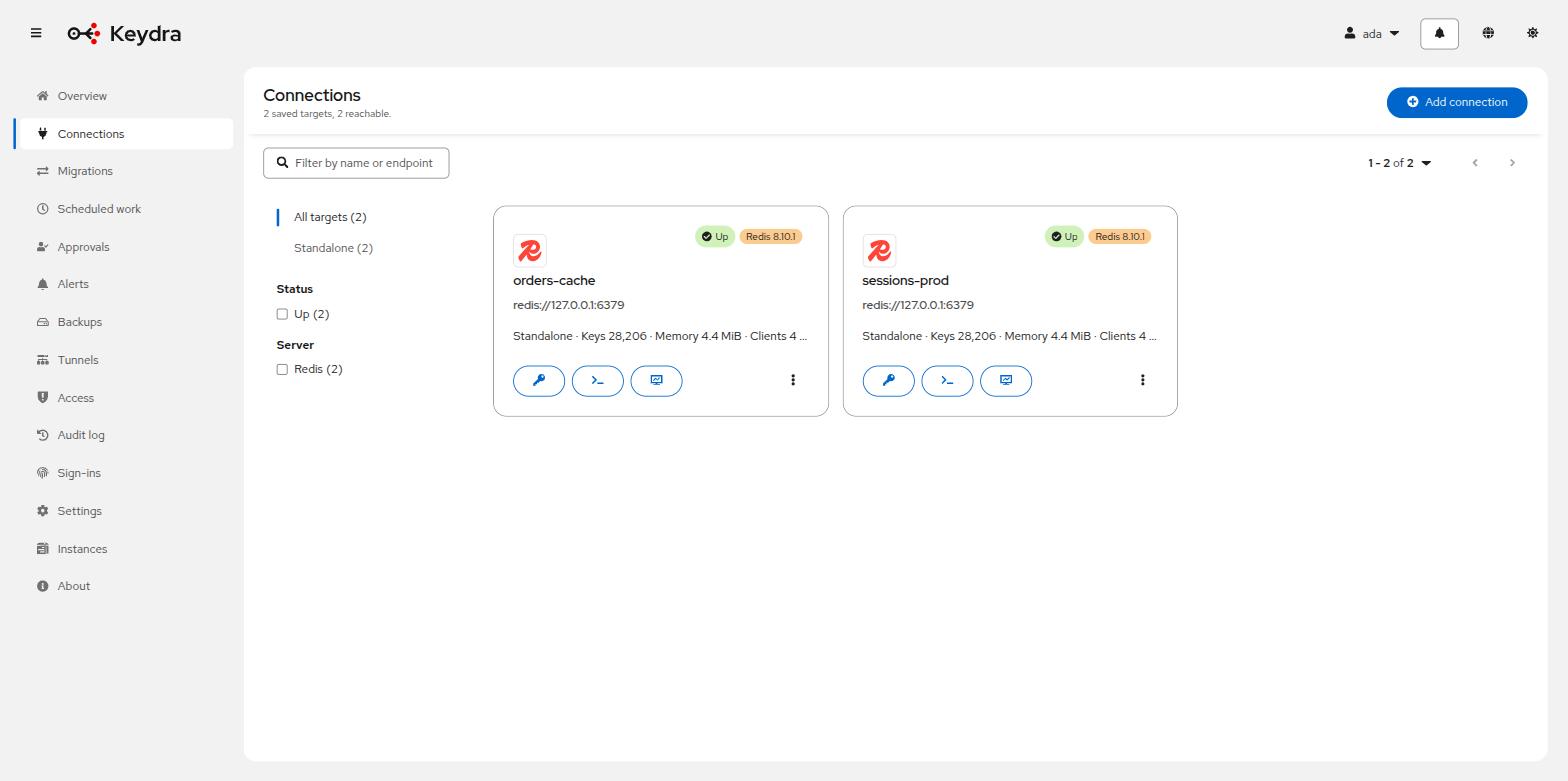
A profile carries:
- Name
-
What the target is called in Keydra. It is unique, and it is what the audit log, the schedules and the alerts refer to.
- Host and Port
-
Where the server answers.
- Type
-
Standalone,ClusterorSentinel. A Sentinel profile also carries the Sentinel master name, and Keydra asks Sentinel where that master currently is rather than being told an address that changes on failover. - Username and Password
-
Optional. Stored encrypted and never returned by the API: an edit form arrives with the password field empty and the help text A password is stored. Leave empty to keep it, or type a new one to replace it.
- Use TLS
-
Whether to speak TLS to the target. The client trusts the system store. Client certificates are not supported.
- Database index
-
Which database a profile opens by default. The key browser can switch to another without editing the profile.
- Notes
-
Free text, for whoever reads the list next.
- SSH tunnel
-
Optional. Points at a tunnel described once under Tunnels — see Reaching targets through a jump host.
Status, and where it comes from#
Keydra checks each profile it is watching and reports Up, Down, Connecting or Unknown, along with the server flavor and version it detected. The status is pushed over the notification hub rather than polled, so the page changes when the target does rather than on a timer.
Adding a connection#
-
You hold
connection:create. The built-inadminrole does. -
The target is reachable from where Keydra runs — or a tunnel to it exists.
-
Go to Connections.
-
Click Add connection.
-
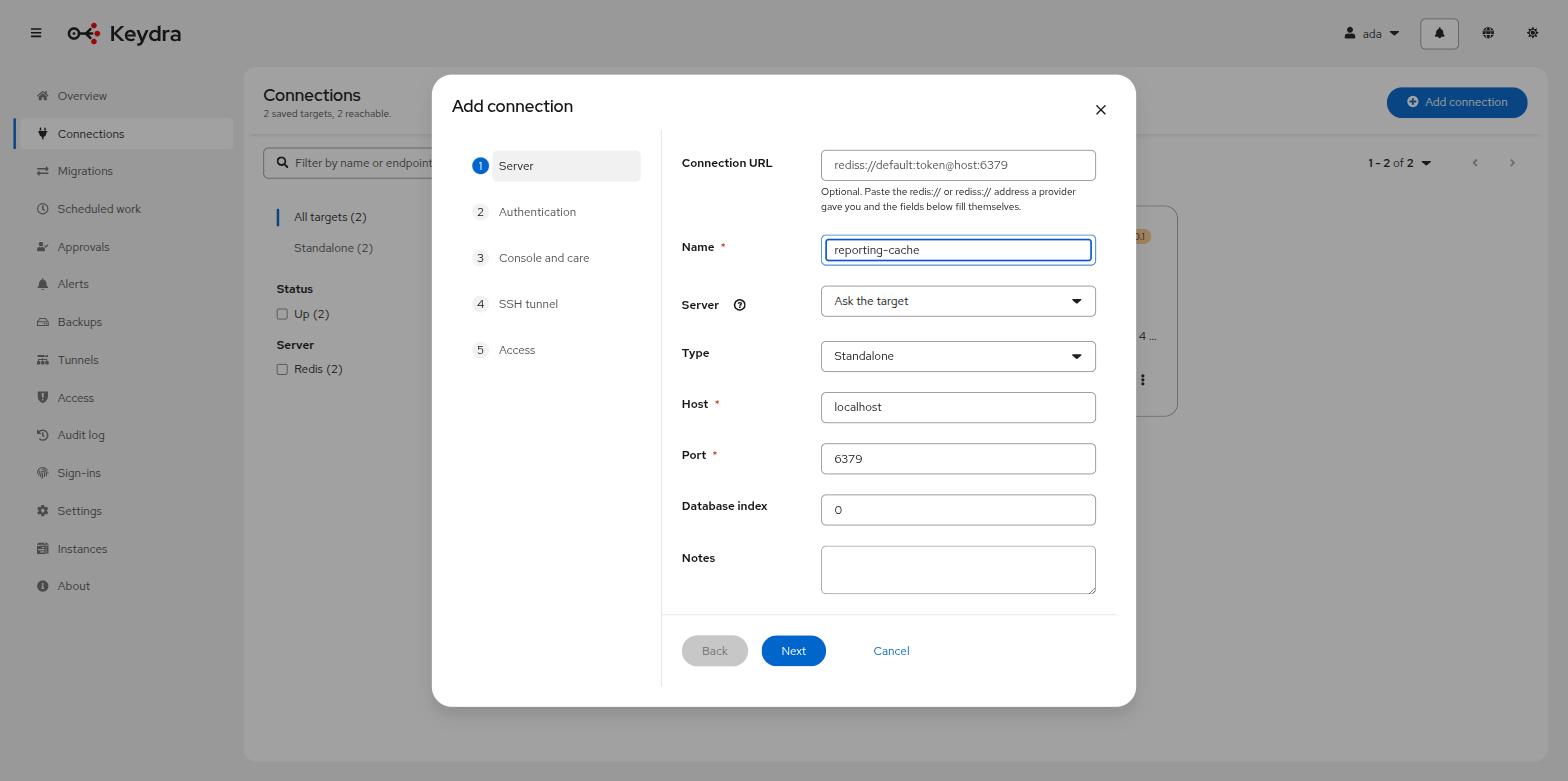
On the Server tab, complete:
-
Name — required.
-
Host and Port.
-
Type — Standalone, Cluster or Sentinel. For Sentinel, also give the Sentinel master name.
-
Database index, if the target should open on something other than database 0.
-
-
On the Authentication tab, give a Username and Password if the target requires them, and tick Use TLS if it speaks TLS. Leave the password empty if the target requires none.
-
Optionally tick Reach this target through an SSH tunnel and choose one.
-
Click Test connection to probe what the form currently says. This records nothing.
-
Click Save.
The new row appears in the table. Its Status moves from Checking… to Up, and the Server column names the flavor and version that answered.
If it stays Down, see A target will not connect.
Two things a TLS target can need that the runtime’s own truststore cannot supply.
Certificate authority. Keydra trusts the authorities the runtime already trusts, which is right for a managed target — Upstash, ElastiCache in transit, Azure Cache — and rarely right for a server inside a company, whose certificate is signed by an authority that exists only there. Naming that authority on the profile trusts it for this target: putting it in the runtime’s own truststore instead would change what every other connection this process makes will accept, and could not be undone for one target either.
Client certificate and key. Where the target asks the client to prove who it is. Both halves or neither — half a pair can only fail later, so it is refused here. The key is unencrypted PEM: a key protected by a passphrase cannot be used, and saying so at the form is better than a handshake failure that names nothing.
Both are read when the profile is saved. A certificate that does not parse is refused while the form is open rather than at three in the morning.
Offered for Redis, Valkey, compatible targets and Aerospike. TiKV’s client reads certificates from paths on disk rather than from material held in memory, so Keydra refuses these fields on a TiKV profile rather than accept a setting it would not use — writing a private key to a temporary file to work around that would be worse than the gap.
Editing and deleting a connection#
-
You hold
connection:editon the target to change it, orconnection:deleteto remove it.
To change a profile:
-
On Connections, open the row’s actions menu and choose Edit.
-
Change what needs changing. The password field arrives empty and marked Stored — leave empty to keep it: leaving it alone keeps the stored password, and typing replaces it.
-
Click Save.
To remove one:
-
Open the row’s actions menu and choose Delete.
-
The dialog reads Delete connection? and states that data on the target server is not affected.
-
Confirm.
An edit closes the profile’s pooled connections and its tunnel, because the profile may now point somewhere else; the status returns to Checking… and then to whatever the new address answers.
A deleted profile disappears from every list, including the fleet overview and the target list a migration offers. Nothing on the server itself changes.
Switching database#
A profile names a default database index, and the key browser can look at any of the others without the profile being edited.
-
You hold
keys:readon the target. -
The target is a standalone or Sentinel server. A cluster has one keyspace.
-
Open the target’s Keys page.
-
Use the database picker in the toolbar. It lists the databases the server reports, with the number of keys in each.
-
Choose one.
The chosen database appears in the page’s address, so the view can be linked to and survives a reload. The key list reloads against it.
Keydra keys its connection pool on the profile and the database, so two databases
are two clients rather than one client issuing SELECT. A SELECT on a pooled connection
would leak into whoever used it next.