Accounts and sessions
Invite somebody rather than choosing their password for them, reset one through the same mechanism, set the preferences that follow your account, pair a second factor and require one of everybody, and see and end the browsers that can act as you.
Inviting somebody#
Making an account by typing somebody else’s password means the password then has to travel to them — a chat message, a sticky note, a sentence across a desk — and every one of those keeps it longer than anybody intends. Worse, it is a password two people know, which means the audit log can no longer answer "who did this" about anything that account ever does.
So an administrator makes the account and Keydra invites the person.
-
You hold
users:manage.
-
Go to Access, open Users, and add the account with the Password field left empty.
-
Send the invitation.
If a mail relay is configured, a link arrives at the account’s address. If none is, the link is returned to you to pass on however you already pass things on — an instance with no relay must not be an instance where nobody can be given an account.
The person opens the link, sees Choose a password for their username, and sets one.
One live invitation per account. Sending a new one ends the old one, so a link somebody forwarded last week stops working the moment a fresh one is asked for.
A link expires and is used once. A link that works forever is a password with extra steps; one that works twice is an account two people can claim. An expired link says This link has expired rather than failing as though it were wrong.
Resetting a forgotten password#
The same mechanism as an invitation. A separate reset flow would be a second place to get token handling wrong, and token handling is the part where getting it wrong hands somebody an account.
-
A mail relay is configured, and the account has an email address.
-
On the sign-in page, click Forgotten your password?.
-
Enter your username and click Send the link.
-
Open the link and set a new password.
The page answers If there is such an account, a link is on its way. — the same sentence whether or not there is one. Anything else would be a way to ask Keydra who has an account here.
Setting a password ends every session that came before it, except the one that set it.
Your sessions#
A session is a row, not only a cookie. That is what makes it something you can look at and something you can end.
-
Being signed in. This needs no role: an account with no grants can still be signed in on a laptop somebody left somewhere.
-
Go to Settings and find Signed-in browsers.
-
Each row says where and when, and marks This browser.
-
Click End on one, or End the other {count} sessions.
An ended session stops working on its next request, not at its expiry. The dialog says so: {what} will be signed out on its next request.
Ending the one you are reading on is signing out, and the dialog says that before it happens rather than after.
There is no page for reading anybody else’s sessions. What a person’s sessions say is where they work and when. An administrator can end somebody’s sessions — "this account is compromised" is a thing an administrator has to be able to act on — and that action is recorded in the audit log, which is where an administrator’s actions belong.
Your preferences#
Preferences follow you rather than a target, and they are kept with your account — so they are the same wherever you sign in. On an instance with no accounts they are kept in that browser instead, and the page says which of the two is happening.
-
Being signed in. No role is needed: an account with no grants still has preferences.
-
Go to Settings.
-
Under Appearance, choose:
-
Colour scheme — light or dark. Following the system changes with it, including on a schedule the system keeps.
-
Theme — the default, or Felt, the theme PatternFly’s own documentation wears: red accents and pill-shaped controls.
-
Contrast and surface — high contrast strengthens every border and label. Glass draws panels as translucent, which is a look rather than an aid, and the page says so.
-
Language. It applies straight away.
-
-
Under Browsing keys, set:
-
Keys loaded at a time — how many keys one scan returns. A larger page means fewer round trips and a longer wait for the first of them.
-
Ask before anything is deleted. Turning it off removes the confirmation on single deletions only; clearing a namespace or a whole target always asks.
-
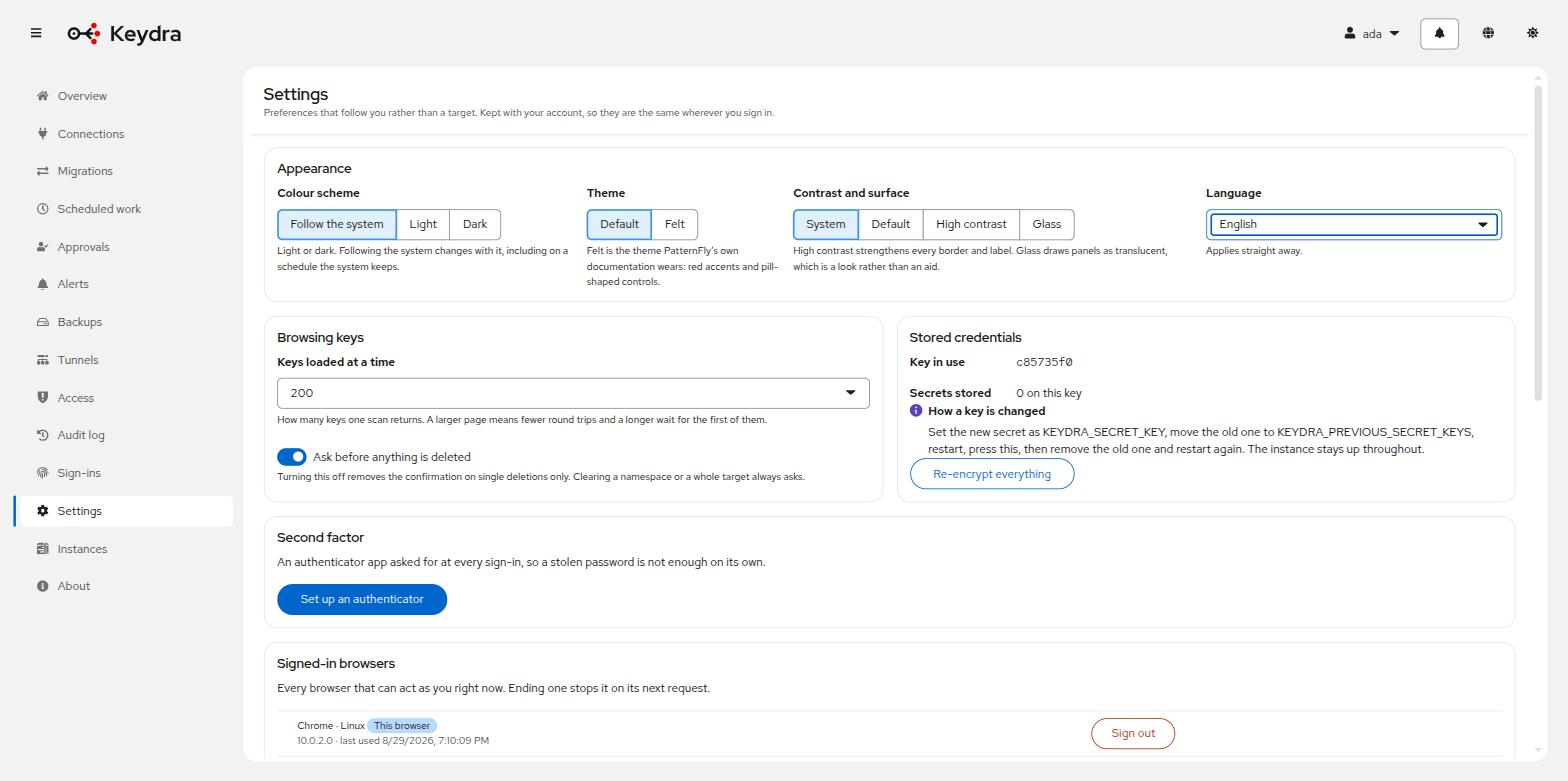
The page redraws in the chosen scheme and language as soon as the choice is made — there is nothing to save, and no reload.
Language is the language of Keydra’s interface. It is also the language an invitation or a password-reset letter is written in, for an account that has expressed a preference; a brand-new account has expressed none, and an email address does not carry a language, so that letter falls back to what the installation is run in.
Stored credentials names the encryption key in use and how many secrets sit under it — see Rotating the instance key. Second factor and Signed-in browsers are described in Pairing an authenticator and Your sessions.
Pairing an authenticator#
A stolen password stops being enough. A second factor is a six-digit code from an app on your mobile phone, and it is asked for at the same moment as the password rather than afterwards.
-
Being signed in with a password here. An account that signs in through an identity provider proves who it is there, and Keydra does not ask it for a second factor as well.
-
An authenticator app on a mobile phone or a laptop.
-
Go to Settings and find Second factor.
-
Click Set up an authenticator. A QR code appears, with the same secret written out underneath it for a device with no camera.
-
Scan it, then type the six digits the app shows and click Confirm.
-
Ten recovery codes appear. Copy them somewhere that is not the mobile phone.
Sign out and sign in again. The form asks for the password first; when that is right and a code is wanted, a code field appears and asks for one. The two go together — there is no half-signed-in state in between, and nothing to expire or replay.
The recovery codes are shown once. Only their hashes are kept, so nothing in Keydra can show them again — the page that hands them over says so. Each works once, and they are what makes a lost mobile phone survivable.
Nothing is enforced until a code has been typed correctly. Opening this page, scanning nothing and closing the tab does not lock you out.
Turning it off again is one button, and the password alone is enough from that moment. Replacing a mobile phone is the same two steps in a row: turn it off, pair the new one.
Requiring a second factor of everybody#
Pairing an authenticator is a person’s own decision until an administrator makes it the
installation’s. The switch is on Access → Sign-in, and it needs policy:manage.
Turning it on is refused unless the account doing the turning has already paired an authenticator. That single check is what separates a switch from a way to lose an installation: requiring a factor takes every role away from every account that has not paired one, and without the check the first such account is the one that flipped the switch.
It is a stored setting rather than a configuration property for the same reason. A property is set in a manifest by somebody who cannot see who has enrolled, takes effect at a restart nobody is watching, and locks out everyone who had not.
Sign in, and nothing else. The sign-in itself succeeds — refusing at the password would leave somebody nowhere to go, because pairing an authenticator is something only a signed-in account can do — and the session that comes back holds no roles at all. What stays reachable is what was already reachable to somebody with no grants: their own second factor, their own sessions, their own preferences. The browser draws the enrolment page instead of the application and says why.
The moment a code is confirmed, everything comes back on the next request.
The page says how many accounts the requirement would catch and have not enrolled. That is the number to know first: it is how many people will find the application empty on their next request.
Local accounts only. An account that signs in through an identity provider authenticated somewhere else, and whether that somewhere else asked for a second factor is not Keydra’s to know or to duplicate — those accounts have no Keydra password either. An installation that wants a second factor from them configures it at the provider.
-
The recovery codes handed out when the factor was confirmed.
-
Another administrator: everybody who can turn this on has a factor, so somebody can always turn it off.
-
Yourself. Turning your own factor off while the requirement is on restricts you on the next request, and enrolment is the one thing a restricted session can still do — which is also how a mobile phone is replaced. It is not refused, because refusing it would make replacing a mobile phone something you have to ask somebody for.
Sign-in protection#
Every attempt to sign in is written down, and the limit is answered before the hash. Argon2id is slow on purpose, which makes unlimited attempts a way of spending the server’s memory as well as a way of guessing a password.
- Throttling
-
Failures are counted per account and per network over a rolling window in the database, so a restart does not reset the count. A refusal never counts towards the limit that produced it — otherwise knocking repeatedly would hold a named account shut. The form says Too many sign-in attempts. Wait a few minutes and try again.
- Anomalies
-
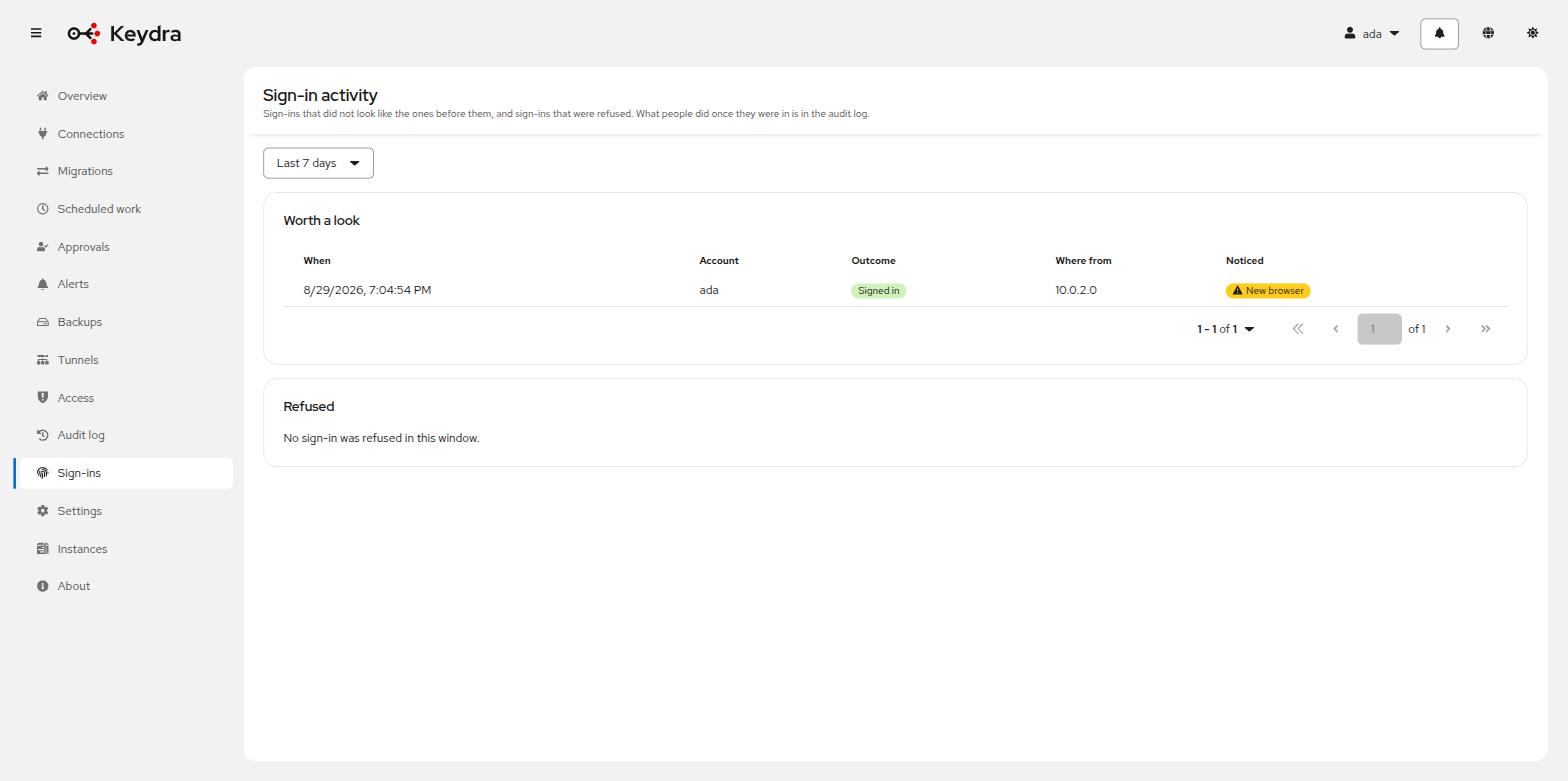
A sign-in that worked is compared with the ones before it, because a stolen password is a correct password. A sign-in from somewhere unusual, after a dormant period, or at a rate that suggests something automated, is flagged and raises a notification.
The window, the limits and the retention are configuration — see
the configuration reference for
keydra.security.sign-in.*.
Password policy beyond a length floor was left out deliberately: composition rules make passwords worse, and the useful version is a breached-password check, which is a network call Keydra does not make.