Cluster and Sentinel topology
How a target is arranged, which node serves which slot, and which capabilities the flavor in front of you actually has.
How a target is arranged#
The topology page reads how the target is put together and what it will let Keydra do.
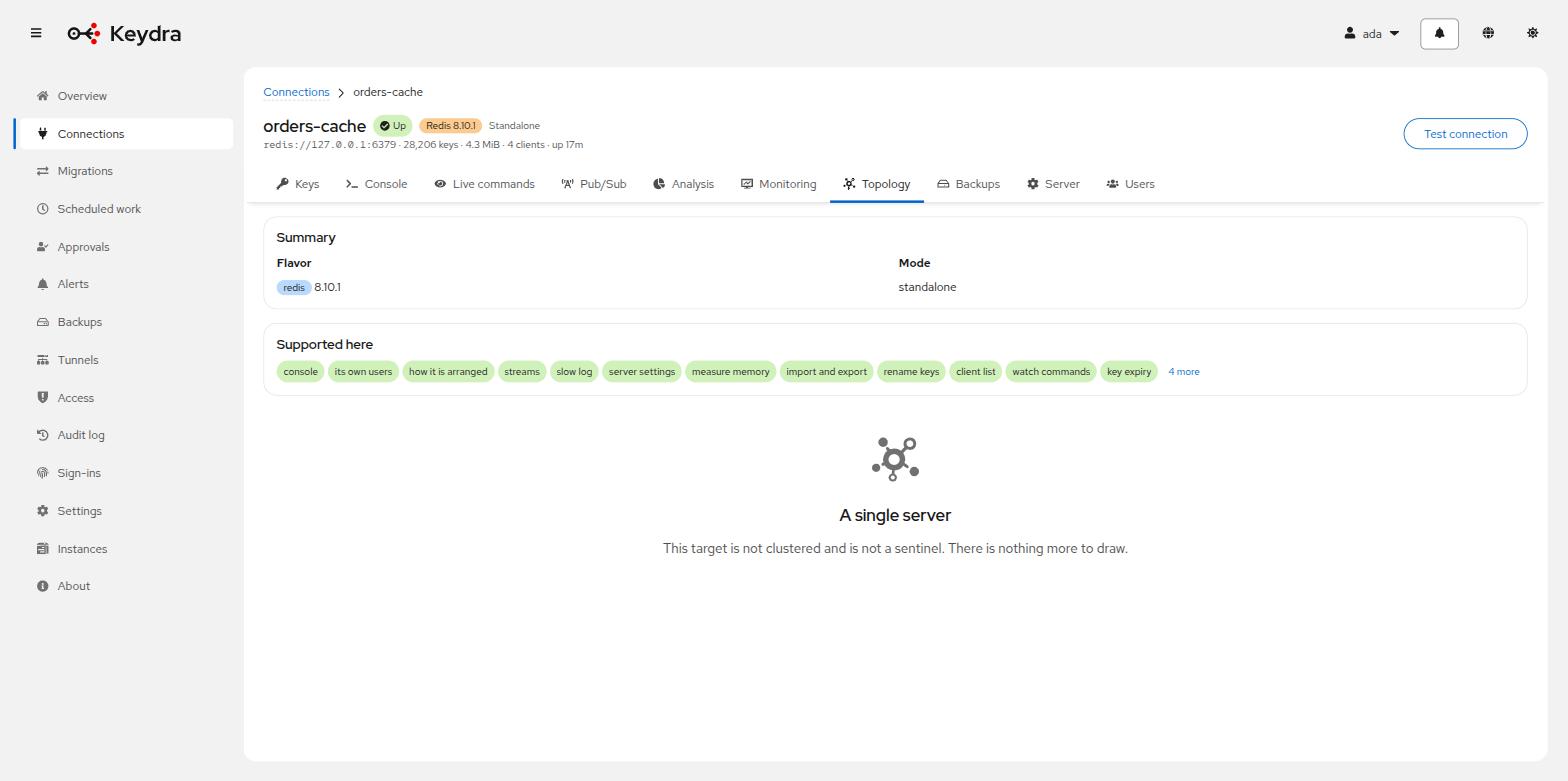
- A single server
-
The page says so and there is nothing more to draw.
- A cluster
-
The nodes with their Address, Role (
primaryorreplica), Slots, Share, Link and Node ID, and a bar showing which node serves each of the hash slots. The header states All {total} slots are served. — or, when they are not, {missing} of {total} slots are served by nobody — keys hashing to them cannot be read or written, which is the sentence that matters and is not something a node list makes obvious.Slots on the move are drawn too, which is the only part of a cluster’s description that is happening rather than being. Every primary is asked, not only the one Keydra’s connection landed on: a node names the slots it is moving and nothing about anybody else’s, so a reshard between two other nodes would otherwise leave the page looking complete and still.
- A Sentinel deployment
-
The master’s Name, Status, Quorum and Replicas.
Capabilities#
Supported here lists what the target says it can do, read from its own command table. Keydra uses it to hide or disable operations a flavor does not support.
A target that will not answer that question is marked Not asked, and everything is offered — an unsupported operation then fails where it is used, which is better than silently hiding something the server can in fact do.
Reading the topology#
-
You hold
connection:viewon the target.
-
Open the target and go to Topology.
-
For a cluster, select a shard or a node in the graph to see its detail: Link, Flags, slot ranges and node ID.
The slot bar accounts for every slot. Hovering a range says which address serves it and how many slots that is.