The key browser
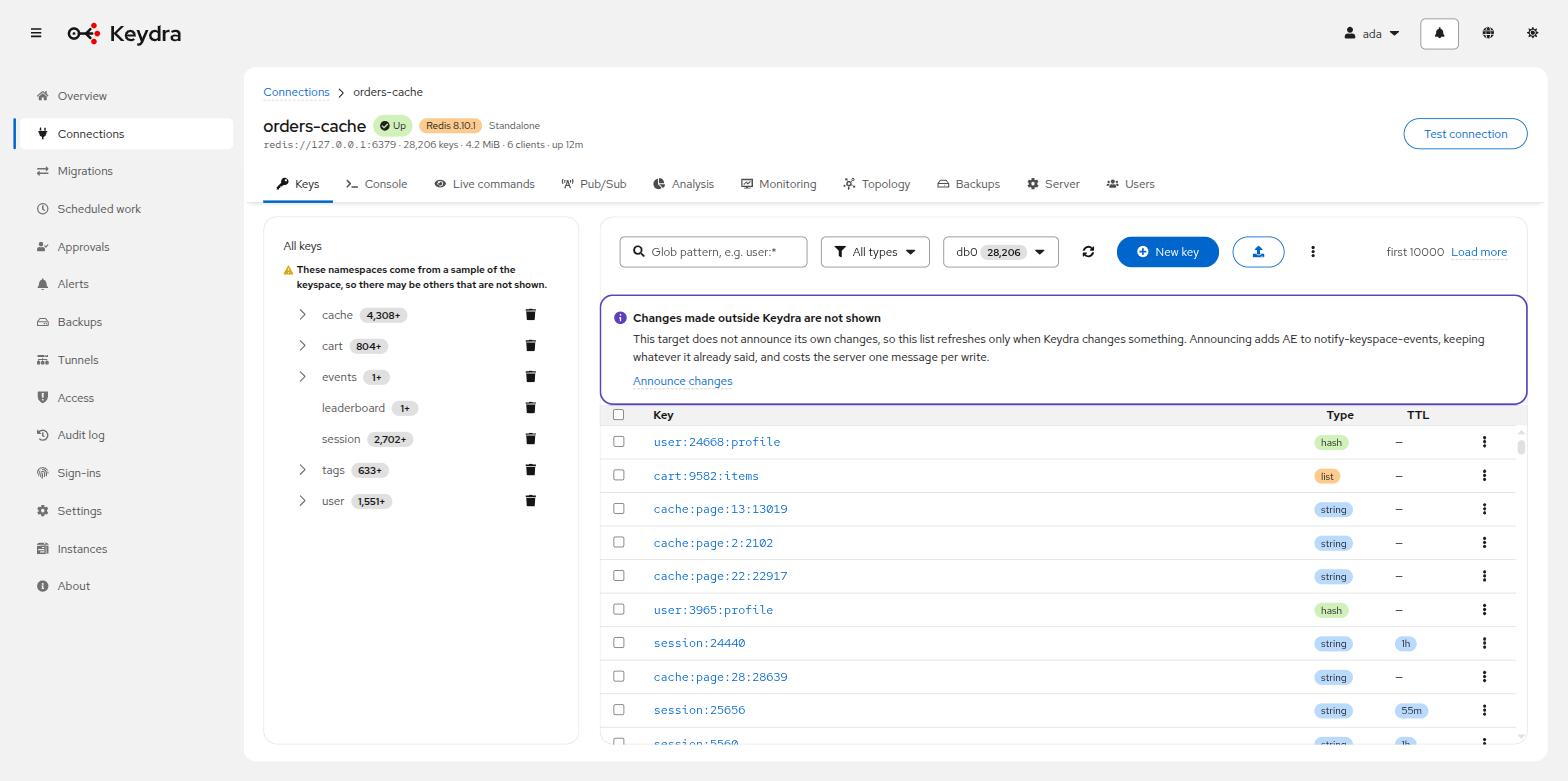
Keys stream in as the server scans them, grouped into a namespace tree and filtered by glob and type. Never KEYS, always a cursor.
How the key browser reads a keyspace#
Keydra never issues KEYS. Enumeration is always a cursor-based SCAN, and the
results are streamed to the browser as the server produces them — so the first keys render
while the walk is still running, and a keyspace of any size is walked rather than held.
That is why the page says {count} keys so far while it works, and why Rescan rather than Refresh is the word on the button: there is no cached list to refresh.
- Namespace tree
-
Keys are grouped on the
:delimiter into a tree, loaded lazily. A branch with more children than the tree will draw says and {count} more — use the search box. - Search
-
A glob pattern, passed to the server as
SCAN’s `MATCH. The placeholder shows the shape:user:*. - Type filter
-
Narrows to one of the server’s types.
- Limit
-
The page holds as many keys as it safely can. When it reaches that, it says Limit reached and explains that narrowing the filter shows different ones. It does not silently stop.
Each row carries the key’s type and its TTL, read in the same pass.
Browsing keys#
-
You hold
keys:readon the target.
-
Go to Connections and open the target, or use Keys in the navigation while a target is open.
-
Optionally narrow what is scanned:
-
Type a glob into Search keys — for example
user:*. -
Choose a type from All types.
-
Click a branch in the namespace tree on the left.
-
-
Click a key to open its value.
The count in the toolbar rises while the scan runs and settles when it finishes. A key’s row shows its type and, where it has one, its TTL; keys without one read No expiry.
Deleting, renaming and expiring keys#
-
keys:deleteto delete,keys:writeto rename, duplicate or change a TTL.
To delete:
-
Select one or more rows, or open a row’s actions menu.
-
Click Delete, or Delete {count} for a selection.
-
The dialog names what will go and says it cannot be undone. Confirm.
To rename:
-
Open the row’s actions menu and choose Rename.
-
Give the New name. If a key of that name exists, the dialog refuses and offers Overwrite the destination if it already exists.
-
Confirm.
To duplicate:
-
Open the row’s actions menu and choose Duplicate.
-
Give the New name, with the same overwrite option.
To set or clear an expiry:
-
Open the row’s actions menu and choose Set TTL.
-
Enter Seconds until expiry, or tick Remove the expiry instead.
-
Confirm.
The list updates without a rescan: the change is broadcast over the notification hub, so every browser looking at that target sees it — including a colleague’s.